I accidentally deleted an important Excel file from my Windows PC without any prior backup. Is there any free data recovery method to restore those lost files without spending any cost?
Microsoft Excel is one of the most widely used programs, which you can use to manage data, create reports, perform calculations, and maintain financial records. Losing an Excel file can be distressing, especially if it holds critical business or academic information. Whether the data is lost due to accidental deletion or intentional removal, misplacing a crucial file can lead to serious inconvenience and disruption.
Fortunately, there are several free data recovery methods and tools available online that you can try to restore your lost Excel files. In this guide, we’ll explore different methods, ranging from simple built-in Windows features to advanced free data recovery software solutions, to recover deleted Excel files on Windows. Let’s get started!
Understanding Why Excel Files Get Deleted on Windows
Before you apply any method to recover deleted Excel files on Windows, try finding the exact reason for the data loss. Some main reasons include:
- Accidental Deletion: You might have accidentally deleted files from your PC by pressing the Delete key or using Shift + Delete, which permanently removes the file without sending it to the Recycle Bin.
- Unexpected System Crashes: If your system shuts down abruptly, due to a power failure, battery drain, or hardware malfunction, all its stored files, including your Excel documents, will get corrupted or lost.
- Virus or Malware Attacks: If your device is infected by malicious programs such as viruses or malware, it may delete, encrypt, or hide files, making them inaccessible.
- Accidental Formatting: When you format your computer, especially without any backup, it deletes all stored data, including Excel documents.
- Hard Drive Corruption or Bad Sectors: If the storage drive develops errors, stored Excel files may disappear or become unreadable.
How do I Recover Deleted Excel Files on Windows? [Quick Methods]
Here are some quick methods that you can try to recover your deleted Excel files on Windows PCs:
Method 01: Check the Recycle Bin
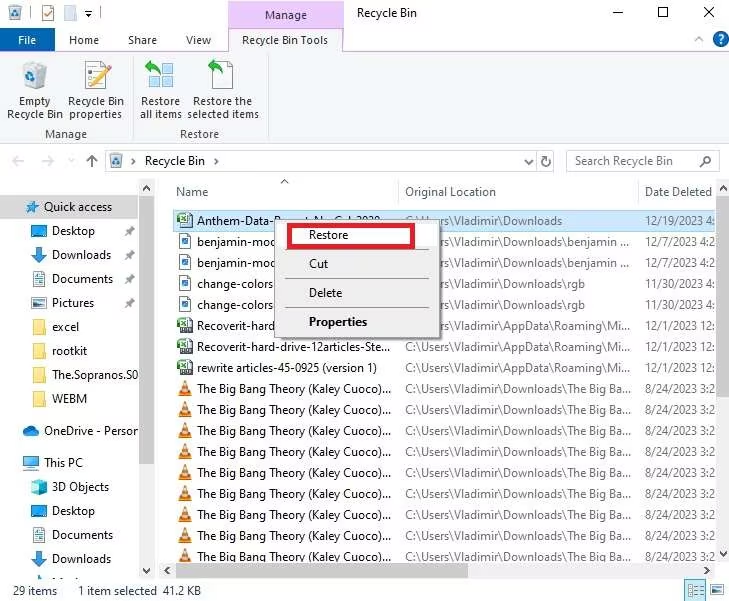
Let’s begin with the simplest method! Every deleted file on your Windows PC goes to the Recycle Bin folder and remains there until permanently erased. Before you apply any advanced recovery method to recover deleted Excel files on Windows, it’s good to check the Recycle Bin folder. All you have to do is:
- Double-click the Recycle Bin icon on your desktop.
- Search for your deleted Excel file (.xls or .xlsx).
- Right-click the file you want and select Restore.
- This will return the file to its original location.
Note: This method will work only if the file was deleted normally (using the Delete key or right-click → Delete). However, if you’ve deleted files using the Shift + Delete or emptied the Recycle Bin, you’ll need to try other recovery methods.
Method 02: Recover Using File History Backups
If your deleted Excel file is not in the Recycle Bin folder, it might have been permanently erased from your PC. In such cases, you can use a previously created backup to get your lost files back. Windows provides built-in File History backup utility, which, when enabled on your PC, automatically creates backup of your files.
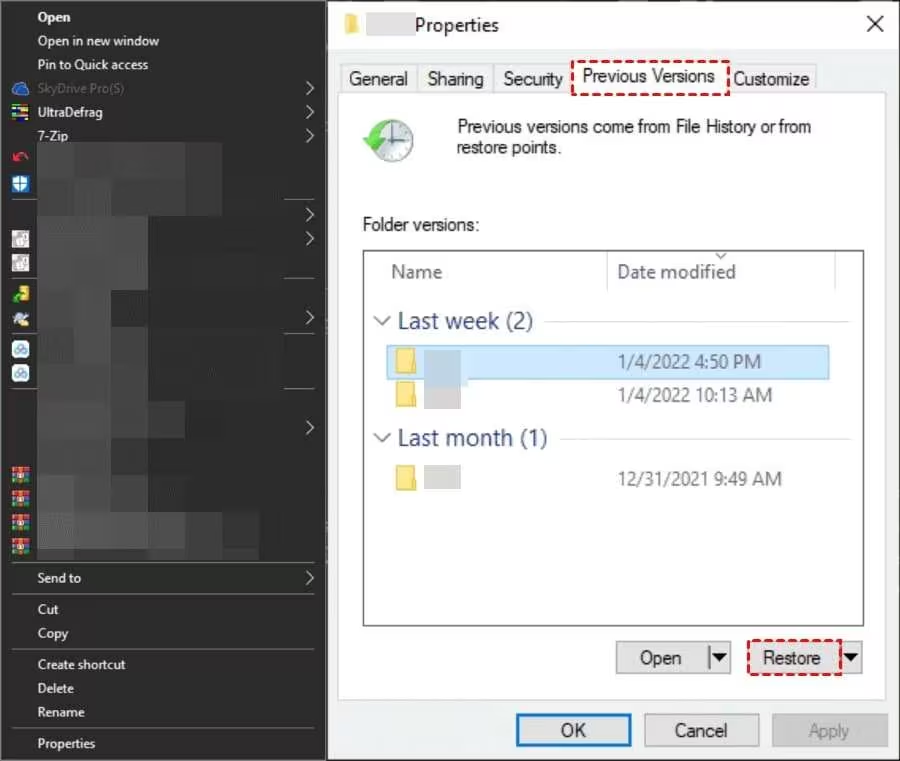
To recover deleted Excel files on Windows using File History backup:
- Firstly, right-click the folder where your deleted Excel file was stored and select Properties.
- Go to the Previous Versions tab.
- Browse through different backup versions and choose the version before the file was deleted.
- Click Restore to return the file to its original location.
Method 03: Restore from OneDrive or Cloud Backups
If you have saved the Excel file in OneDrive or any other cloud backup service (such as Google Drive, iCloud, etc.), you can restore it easily. Here’s how to recover your deleted Excel files using OneDrive backup:
- Visit the OneDrive official website and log in using your Microsoft account.
- Now, click the Recycle Bin from the left-menu bar.
- Search or browse for your deleted .xls or .xlsx file.
- Once found, select the file and click Restore.
This will return the selected file to its original folder in OneDrive.
How to Recover Deleted Excel Files Without Backup?
Data loss can happen to you at any time. If you ever unexpectedly find any important Excel file missing from your Windows PC, you can use third-party free data recovery software to restore lost files without any cost. Tools like Stellar Data Recovery Free are especially designed to restore your files lost due to accidental deletion, formatting, system failure, and many other reasons. You can use this software to recover deleted documents, including Excel files (.xls and .xlsx), from Windows PCs, laptops, and many internal or external storage devices.
The Stellar Data Recovery Free software lets you recover deleted files up to 1 GB for free, which is usually sufficient for Excel documents. Moreover, if required, you can check and use other premium versions to restore files of a larger size.
Step-by-Step Guide to Recover Deleted Excel Files
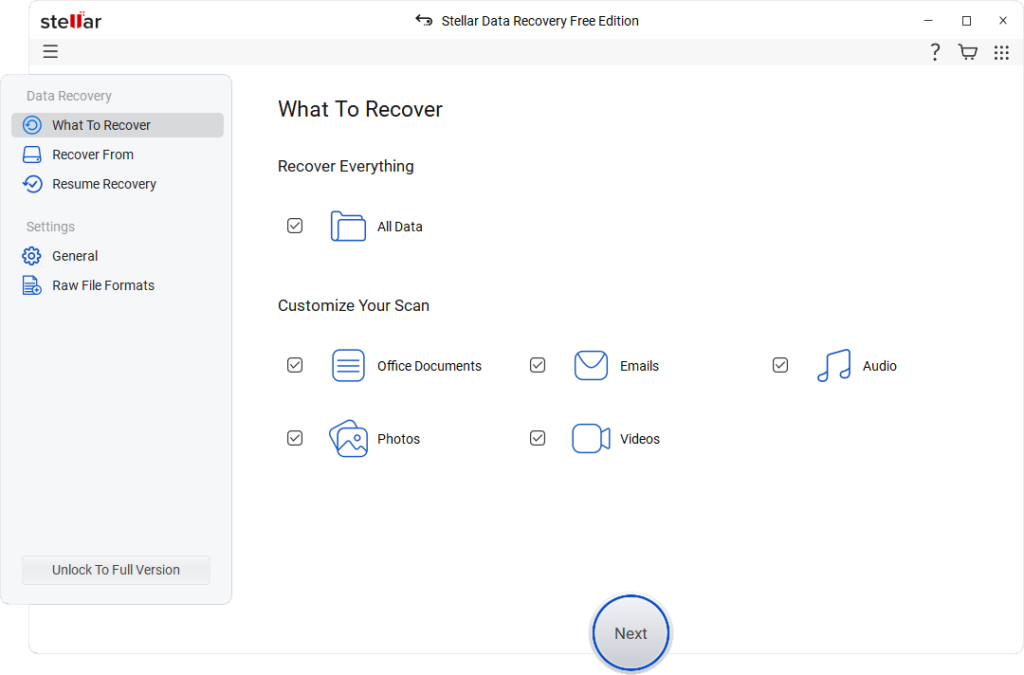
Step 1: Download and install the Stellar Data Recovery Free software on your Windows PC. Launch the software, then from the homepage, select Office Documents (to restore the deleted Excel file) and click Next.
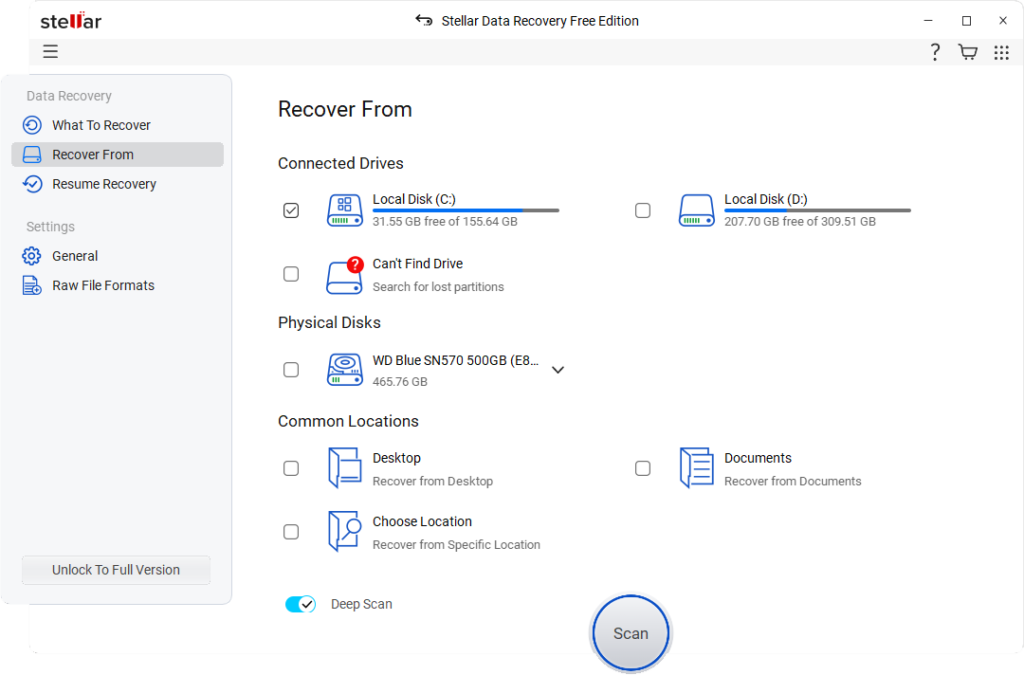
Step 2: Choose the drive or folder where the Excel file was stored before deletion. Click Scan to initiate the scanning process.
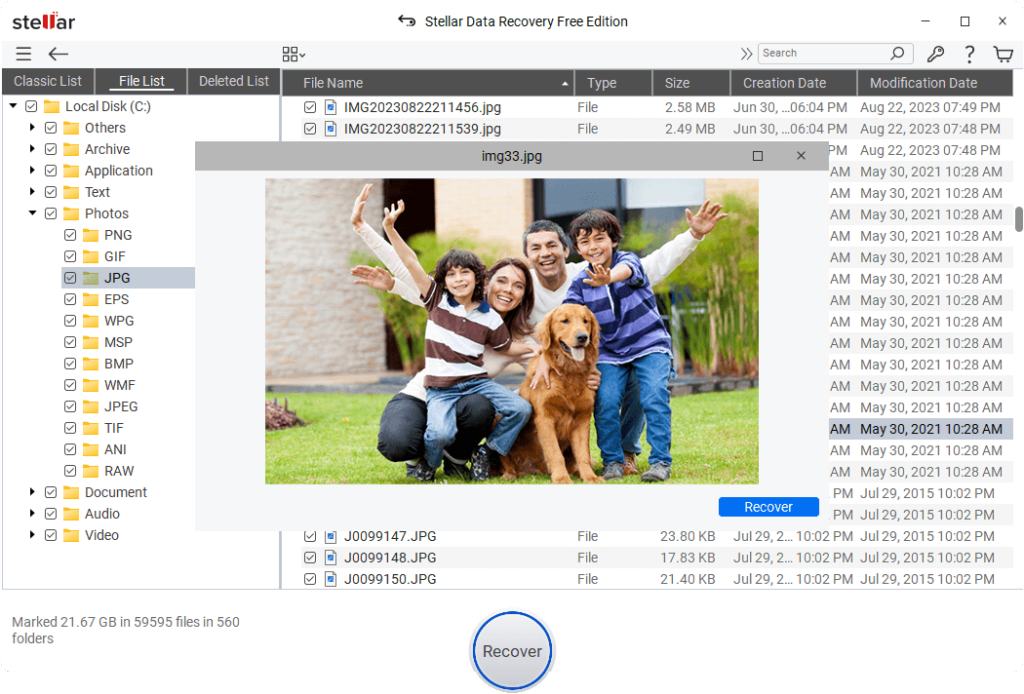
Step 3: Once the scan is complete, the software will display a list of recoverable files. Select the Excel files you want to restore and click Recover to save the selected file to a different drive or external storage device.
Preventive Tips to Avoid Excel File Loss in Future
Prevention is always better than cure. You can consider the following best practices to avoid the deletion of Excel files on your Windows PC:
- Enable AutoSave: Turn on AutoSave in Excel, especially when working on important files.
- Turn On File History Backup: Enable File History backup sync on your Windows PC. For this, go to Settings > Update & Security > Backup > Add a drive.
- Avoid Sudden Shutdowns: Use a UPS for desktops to prevent data corruption during power failures.
- Install Antivirus Protection: Install and regularly update antivirus software on your PC to protect against malware and ransomware attacks.
Wrapping Up
If you ever find Excel files deleted from your Windows PC, go with the aforementioned methods one by one to get your files back. Start with simple solutions like checking the Recycle Bin or using previously created backups. If you don’t have any backup and the mentioned methods fail, move to advanced options like using a free data recovery software such as Stellar Data Recovery Free.
The key is to stop using the affected drive immediately to prevent overwriting deleted data. Additionally, enabling regular backups and cloud synchronisation can significantly reduce the risk of permanent data loss in the future.
Frequently Asked Questions (FAQs)
Is it possible to restore permanently deleted Excel files on Windows?
Yes, you can recover a permanently deleted Excel file using backup options like File History, OneDrive backup, or third-party data recovery software. However, recovery success depends on whether the file has been overwritten.
How long do deleted Excel files stay in the Recycle Bin?
Every deleted file goes to the Recycle Bin folder and typically remains there for 30 days (longer for business accounts) or until you remove it from there.
How can I prevent Excel file loss in the future?
Enable File History, turn on AutoSave/AutoRecover, use cloud storage like OneDrive, and maintain regular backups on external drives.
Is free data recovery software safe to use?
Most reputable data recovery tools, like Stellar Data Recovery Free, are safe if downloaded from official websites. Avoid installing the software on the same drive where data was lost to prevent overwriting.
Read More https://eopis.co.uk/