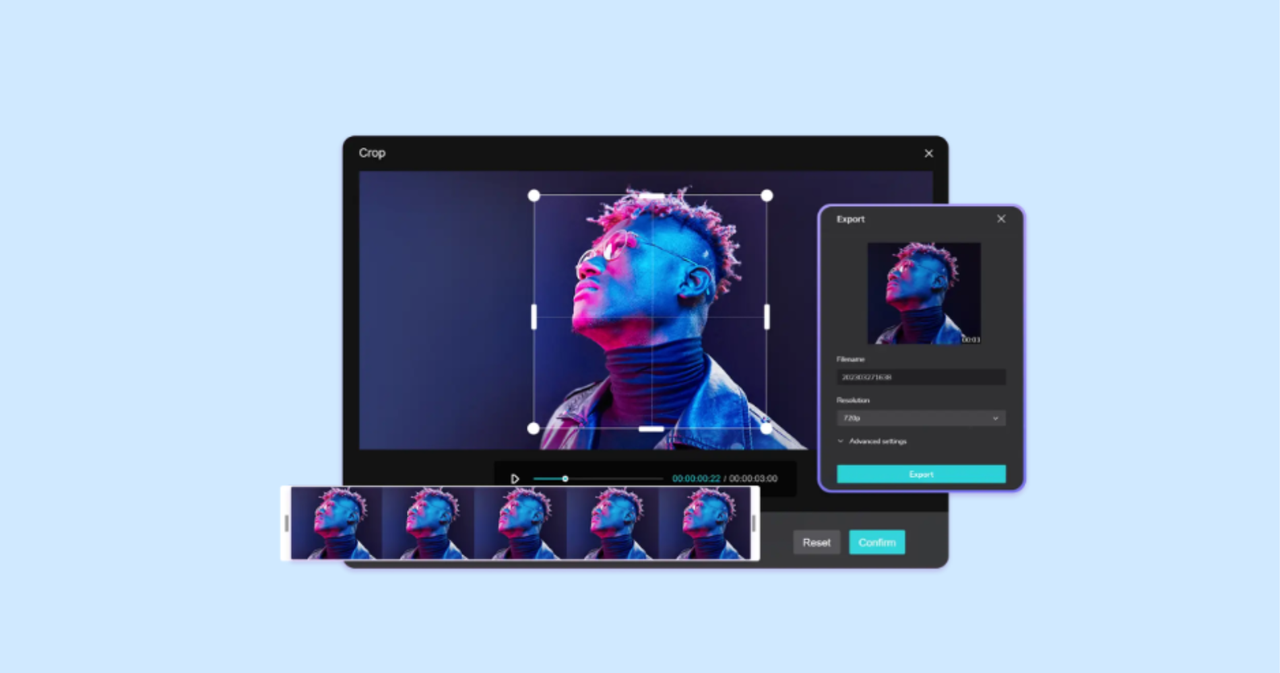
It is common to crop the videos to enhance framing, eliminate distractions, or optimize content for other platforms. Nevertheless, inappropriate cropping may decrease the quality of the video, make it blurry, or rearrange key visuals. To achieve high video quality and be able to crop, solutions and workflows are necessary. CapCut Desktop can also crop frames with ample precision and intelligent resolution management, allowing creators to make both adjustments to a video without hurting its visual quality.
CapCut Desktop: Built for Quality-Focused Video Editing
The main editing product of CapCut is CapCut Desktop, which can be used for editing videos and images of professional quality within one workspace. It also gives the creators maximum control in terms of resolution, aspect ratio, and framing, and thus, it is easy to maintain the quality during the editing process. You can be working on short clips or on longer types of video, but with CapCut Desktop, you can make sure that your content is bright and balanced.
One of the greatest strengths of CapCut Desktop is that it is creatively unified. Users can edit images, add filters, and control framing on various forms of content. As an example, one can enhance images with the Photo editor and proceed to work with videos, where programs such as Crop Video can be used to make the necessary adjustments without losing quality unnecessarily. This uniformity is necessary in professional appearance and content.
Also in tandem with the desktop version, CapCut has a Web version where rapid and easy edits can be made.
CapCut Web: Quality-Preserving Cropping Without Downloads
CapCut Web enables the user to trim videos within the browser, and no software is necessary. It assists in preset aspect ratios and manual cropping features that assist with proper maintenance of resolution when making edits. This allows CapCut Web to be utilized in making simple adjustments while maintaining video quality.
Next, we will pay attention to the topic of crop video using CapCut Web and ensure its maximum visual quality in the next section.
How to Crop Videos While Maintaining Quality Using CapCut Web
CapCut web has the Crop Video feature, which allows users to trim video edges with a lot of care so that essential elements do not disappear.
Step 1: Create an Account
You will start by going to the home page of CapCut and clicking on Sign up for free. You can log in with your Google, Facebook, or TikTok account. You will then be able to access CapCut regarding its web-based editing work environment, where you immediately have access to video cropping options.
Step 2: Upload Your Video and Choose the Right Aspect Ratio
When in the workspace, choose the aspect ratio that corresponds to your target platform to avoid unnecessary scaling. Post your video with your computer, Google Drive, or QR code. The correct aspect ratio should be selected at the initial stage to ensure that resolution is retained and to avoid the loss in quality that could otherwise be obtained in the process of cropping.
Step 3: Crop Carefully and Save in High Quality
Select the video in the timeline to start the editing tools. The preview will have a white border around it, showing the choice of the video. Select the crop symbol and put the frame into place, trying not to zoom a lot, as this is going to decrease the sharpness. Reposition the video so that important details are in the center. When this is done, save the video either to your device or directly to your social media channels with high-quality export settings.
You May Also Like: Video&A The Future of Interactive Video Platforms
Tips to Maintain Video Quality While Cropping
Only to maintain the quality of the video, one should not over-crop or zoom in on the footage. The greatest source video you have to work with should always be in the highest resolution, and the crop ratio should be consistent with your platform requirements. By maintaining major subjects in focus, the problem of overcropping is minimized.
Consistency is important when the creators deal not only with images but also with videos. Pictures that have been enriched with the photo editor can be matched to the video material, whereas well-thought-out actions on the Crop Video tools would guarantee that both formats remain clear and balanced visually across all platforms.
Why CapCut Is Reliable for Quality Preservation
The ecosystem of editing at CapCut is meant to be simple and controlled at the same time. CapCut Desktop is distinguished by more sophisticated resolution and export settings, whereas CapCut Web can be used as a quick and convenient alternative, which is focused on quality cropping. Combined, they enable creators to modify their framing without compromising their visual character.
This renders CapCut particularly appropriate among creators who require repurposing toward content that spans platforms and appears professional.
Desktop vs Web: Which Is Better for Quality Control?
CapCut Desktop would be used to work on projects where quality control, extended timelines, and export settings are required. When fast and convenient crops and platform-specific adjustments are necessary, use CapCut Web. Lots of creators work with both versions, depending on the extent of control.
Conclusion
Cropping videos should not compromise the quality of the video as a means of creating clean and interesting content. CapCut Desktop offers a good base on which good video editing can be done, and CapCut Web offers an easy avenue to trim and cut videos easily without ruining their quality.
Considering the Crop Video option carefully and integrating it with such tools as the Photo editor, users can be assured that their videos will be clear, balanced, and presentable on the platforms. CapCut is highly flexible, and the editing ecosystem ensures that cropwork is easy with confidence and the quality that the current audience requires.