
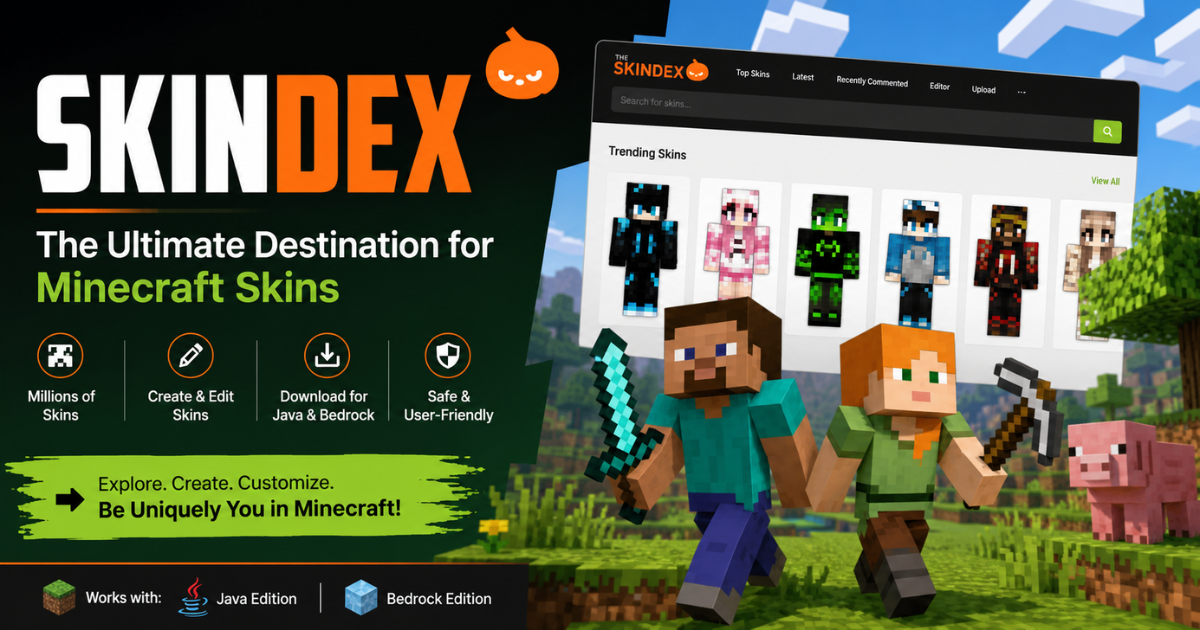
Skindex is a community Minecraft skin platform where users can browse, edit, download, and share custom character skins. It is useful when you want a new in-game appearance without drawing every pixel from scratch.
The Skindex is independent from Minecraft, Mojang Studios,s and Microsoft, so it should be treated as a third-party community resource rather than an official Minecraft service.
What Is Skindex?
Skindex usually refers to the Minecraft skin website operating at MinecraftSkins.com. Its main features include a searchable community library, an in-browser skin editor, uploads, user profiles, a wardrobe function, and tools for discovering existing skins.
A Minecraft skin is a texture that changes the appearance of your player character. It does not add abilities, alter game mechanics, or function like a mod. Minecraft’s official guidance allows Java players to import custom skins and provides Bedrock players with skin options through the Dressing Room.
What Can You Do on The Skindex?
Most users visit for one of four reasons:
- Find a ready-made community skin.
- Edit an existing design.
- Create a skin in the browser.
- Download a PNG file for use in Minecraft.
The editor is suitable for straightforward pixel changes, recoloring,g and working with body and overlay layers. A more advanced editor may be preferable when you need reference-image support, detailed palette tools, mob textures, or greater control over the preview. Planet Minecraft’s PMCSkin3D, for example, includes player and mob editing with a live 3D preview.
How to Choose a Skin That Will Work
Do not select a skin from its front thumbnail alone. Check the complete 3D preview, including:
- The back of the torso and head
- Both sides of the arms and legs
- The underside of the head
- Inner limb surfaces
- Base and overlay alignment
- Classic or Slim arm compatibility
Classic skins use 4-pixel-wide arms, while Slim skins use 3-pixel-wide arms. Selecting the wrong model can stretch, remove, or misplace arm details. Both The Skindex and Minecraft’s official Java instructions ask users to choose the appropriate model during installation.
From what I’ve seen in recurring skin-support questions, model mismatch causes more confusion than the download itself. A practical way to check this is to note the model shown on the skin page before saving the file.
How to Use Skindex: A Practical Workflow
- Search by a specific visual concept.
Use combinations such as “green medieval ranger,” “space explorer slim,” or “winter hoodie” instead of a broad word like “cool.” - Open the full skin page.
Review the creator, description, model, and 3D rendering. - Check originality and reuse expectations.
Do not re-upload another creator’s work as your own. Read the description for credit, remix,x or contest instructions. - Download the skin file.
The expected asset is a PNG image. The Skindex FAQ directs users to the Download button on the individual skin page. - Install it using the correct edition workflow.
Java and Bedrock do not use the same interface. - Test it in-game.
Look at the character from several angles and check whether the overlay, arms, and seams display correctly.
In real use, the best habit is to keep the original PNG and save edits under a new filename. That gives you a working fallback if an edit introduces transparent gaps or breaks the arm model.
Installing a Skindex Skin in Java Edition
Minecraft’s official Java workflow allows a custom skin to be uploaded through the player’s Minecraft profile. Users select Classic or Slim, choose the PNG file, and upload it. The launcher also provides a Skins area for importing a new skin.
Before uploading:
- Confirm that the file is a valid skin PNG.
- Select the same arm model shown in the original preview.
- Keep the filename descriptive.
- Reopen Minecraft after applying the change if it does not appear immediately.
Installing a Skin in Bedrock or on Mobile
Bedrock uses the Dressing Room and Classic Skins interface rather than the Java profile workflow. Available import steps can differ between Windows, mobile, and console devices, so users should check current official guidance for their platform before downloading a skin specifically for installation.
A common mistake is following an old Pocket Edition tutorial without checking whether the current menu or device still supports the same import path. Use screenshots that match the latest interface, and add a “last verified” date to installation instructions.
Skindex vs Other Minecraft Skin Options
| Option | Main Advantage | Main Limitation |
| Skindex | Quick community discovery and approachable browser editing | Third-party platform; editor may be too simple for advanced work |
| Planet Minecraft | Deeper editor and broader Minecraft creator community | More features can create a steeper learning curve |
| NameMC | Useful for profile, username, cape, and trending-skin discovery | Less focused on a complete skin-creation workflow |
| Minecraft Dressing Room or Marketplace | Official in-game experience | Custom-file control and availability vary by edition and device |
Planet Minecraft supports community skins and a feature-rich editor, while NameMC combines skin discovery with player profiles, usernames, capes and servers.
Safety, Privacy and Creator Rights
No responsible guide should make an absolute claim that every third-party site, advertisement or user upload is safe. Confirm that you are on the intended domain, use the skin page’s real download control, and expect a PNG skin file—not an executable program or browser extension.
Do not enter Microsoft credentials into an unrelated page. Minecraft account actions should occur through official Microsoft or Minecraft interfaces.
The Skindex privacy policy says it may collect account details, IP and device information, cookies and similar technology for operation, security, advertising and measurement. Users creating an account should review the current policy rather than assuming the service is anonymous.
The platform’s terms also prohibit uploading work without permission. What most guides miss is that downloading a skin for personal use and republishing that skin under your own name are different actions. Keep creator credits and obtain permission before distributing a modified version when required.
When Skindex May Not Be the Right Tool
Skindex may not be ideal when:
- You need advanced palette or reference-image controls.
- You are designing mob skins or a larger skin pack.
- Your platform does not support direct custom-file imports.
- You need a fully official in-game content path.
- The website or editor is temporarily unavailable.
- You want to sell or commercially distribute designs without reviewing Minecraft’s Usage Guidelines.
Minecraft’s Usage Guidelines distinguish personal creations from broader sharing and commercial use, and they can change over time. Verify the current rules before monetizing branded or derivative skin content.
Skindex in 2026
The most useful 2026 update is not a new keyword variation; it is better workflow verification. Site privacy terms, Minecraft menus, device compatibility, and creator rules can change, so every installation guide should carry a visible review date.
AI-assisted character-to-skin generation is also emerging. Recent research demonstrates pipelines that convert character concepts into Minecraft-style previews and skin atlases. However, generated output still needs manual checks for seams, arm models, pixel clarity, visual consistency, and intellectual-property risks.
Should You Use Skindex?
Use Skindex when you want a fast, visual way to discover community skins or make a simple edit in a browser.
Choose a more advanced editor when precise shading, reference images, mob models, or complex layer work matters. Choose the official Dressing Room or Marketplace when you prioritize an in-game, platform-supported experience over downloadable community files.
The best overall approach is to use Skindex for discovery, verify the creator and model, save the original PNG, install it through the correct Minecraft interface,e and inspect the final result in-game.
Conclusion
Skindex is a practical starting point for finding and editing Minecraft skins, especially for beginners. Its strongest value is convenience, but a successful workflow still depends on choosing the correct model, using the right edition-specific installation path, respecting creators, and treating the site as an independent community platform.
You May Also Like EGJSG Mini Projector Review
FAQs
Is Skindex worth using in 2026?
Yes, Skindex remains useful for quickly finding and editing community Minecraft skins. It is best for beginners and casual edits, while advanced creators may prefer a deeper editor, and users should verify current platform compatibility before installing.
What is Skindex?
Skindex is an independent website for browsing, creating, editing, and sharing Minecraft skins. It is not an official Mojang or Microsoft product.
Why does my Skindex skin look wrong in Minecraft?
The most common cause is selecting the wrong Classic or Slim arm model. Check whether the skin uses 4-pixel or 3-pixel arms, then upload it again with the matching setting.
Is Skindex always better than the Minecraft Dressing Room?
No, Skindex offers more community-file flexibility, while the Dressing Room provides a more official Bedrock workflow. The better choice depends on your device, edition, and need for custom editing.
What is the hidden risk of editing a Skindex skin?
The overlooked risk is republishing another creator’s work without permission or attribution. Save source details and review the creator’s instructions before sharing a modified version.





One Comment