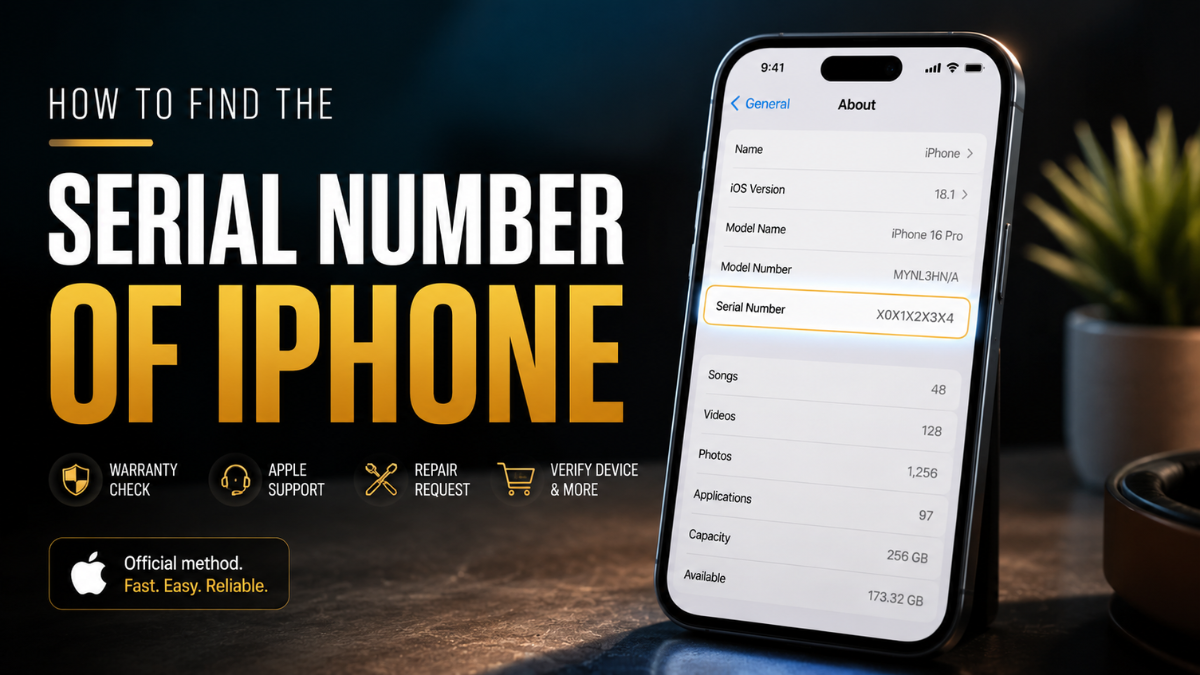
To find the serial number of iPhone, open Settings > General > About, then look for Serial Number. You can touch and hold the number to copy it for Apple support, warranty checks, or repair forms. Apple lists this as the main method for finding iPhone serial details.
Your iPhone serial number is a unique device identifier used by Apple to confirm the product, warranty status, repair eligibility, and AppleCare coverage. It is different from your IMEI, model number, and part number.
What Is an iPhone Serial Number?
An iPhone serial number is a unique code assigned to your device. Apple uses it to identify the exact product in support, repair, warranty, AppleCare, and service systems.
From what I’ve seen, users often search for the serial number only when something urgent happens, such as a broken screen, a warranty claim, a trade-in request, or a second-hand purchase check.
Why You May Need Your iPhone Serial Number
You may need your iPhone serial number to:
- Check Apple warranty or AppleCare coverage
- Contact Apple Support
- Start a repair request
- Verify a second-hand iPhone
- Confirm purchase records
- Use Apple Self Service Repair
- Complete business or insurance documentation
Apple’s Check Coverage page lets users enter a serial number to review support and coverage eligibility.
Method 1: Find It in Settings
This is the fastest method when your iPhone is working.
- Open the Settings app.
- Tap General.
- Tap About.
- Look for the Serial Number.
- Touch and hold the number to copy it.
In real use, copying the number is safer than typing it manually because serial numbers can be easy to misread.
Method 2: Find It Without Turning On the iPhone
If your iPhone will not turn on, you may still find the serial number through the original box, barcode label, receipt, or invoice. Apple says the serial number can often be found on the original product packaging or purchase receipt.
A practical way to check this is to look for:
- Original iPhone box barcode
- Apple Store receipt
- Carrier purchase invoice
- Email invoice from Apple or reseller
- Apple ID device list
- Apple Support account
This helps if the screen is cracked, Face ID is not working, or the battery is dead.
Method 3: Use Apple ID or Apple Support
If the iPhone is linked to your Apple ID, you may be able to view device details through Apple Support or your Apple account. Apple’s My Support page is designed to show information about active Apple products, repairs, reservations, and support cases.
This is useful when you do not have the phone in hand but still own the device.
Serial Number vs IMEI vs Model Number
| Identifier | Best Used For | Where Found | Important Note |
| Serial number | Apple warranty, AppleCare, repair | Settings, box, receipt | Best for Apple support |
| IMEI | Carrier, cellular network, lost phone reports | Settings, SIM tray on some models | More sensitive than serial |
| Model number | Identifying iPhone version | Settings > About | Not unique to your phone |
| EID / ICCID | eSIM and SIM details | Settings > About | Mainly carrier-related |
A common mistake is using the IMEI when Apple asks for the serial number, or using the model number when a repair form needs a unique device identifier.
Real Workflow Before Apple Support or Trade-In
Before contacting Apple Support, selling your iPhone, or checking a repair option, use this quick workflow:
- Copy the serial number from Settings > General > About.
- Confirm the iPhone model name on the same screen.
- Check AppleCare or warranty status.
- Keep the number private unless using an official Apple, carrier, or trusted repair form.
- Save a screenshot for your records, but do not post it publicly.
What most guides miss is that the serial number is not just a “where to find it” detail. It is often part of a decision path: repair, replace, resell, insure, or verify.
What Changed in 2026?
The core method is still the same: Settings > General > About. What matters more in 2026 is how often users need serial numbers for AppleCare, trade-in programs, repair eligibility, eSIM support, and Self Service Repair. Apple notes that some Self Service Repair purchases may require a product serial number or IMEI.
Before publishing, verify screenshots against the latest iOS version because Apple may update labels or settings placement.
Common Mistakes and Risks
The biggest mistake is sharing your serial number publicly in screenshots, marketplace listings, or social posts. It may not expose everything by itself, but it can still be misused in support, warranty, or resale contexts.
Other mistakes include:
- Confusing serial number with IMEI
- Typing the wrong character
- Using an old box from another iPhone
- Trusting unofficial lookup websites first
- Posting full device details online
Use Apple’s official Check Coverage page when possible.
Real Use Workflow
- Open Settings > General > About.
- Copy the serial number instead of typing it.
- Match it with the iPhone model name.
- Use it on Apple Check Coverage or official support forms.
- Store it privately in your records.
Common issue: the phone is broken. Practical fix: use the box barcode, receipt, invoice, or Apple Support account.
Realistic Scenario
A user wants to sell an old iPhone, but the buyer asks for proof of model and warranty. The serial number works for Apple coverage checks, but the user should not post it publicly in the listing. What most people overlook is that a clean screenshot should hide IMEI, ICCID, and other sensitive identifiers.
Mistakes, Risks, and Limitations
A common mistake is copying the IMEI when the form asks for the serial number.
What most guides miss is that a serial number should be treated as private device information.
This may fail when the phone is not linked to your Apple ID, the box is missing, or the receipt belongs to another device.
What to do instead: use Apple Support, purchase records, or the original seller’s invoice.
When These Methods May Fail
These methods may fail when the iPhone is not linked to your Apple ID, the original box is missing, the receipt is unavailable, or the device was bought second-hand without proof of purchase.
In many cases, the best next step is to contact Apple Support or the original seller with purchase documentation.
Should You Use the Serial Number or IMEI?
Use the serial number for Apple warranty, AppleCare, and Apple repair support. Use the IMEI for carrier, cellular, stolen-device, or eSIM-related issues.
Best overall choice: start with the serial number if Apple is involved, and use IMEI only when a carrier or cellular service provider asks for it.
Final Answer
The best way to find your iPhone serial number is Settings > General > About > Serial Number. If the iPhone will not turn on, check the original box, receipt, invoice, Apple ID device list, or Apple Support account.
FAQs
Is the iPhone serial number the same as IMEI?
No, the serial number and IMEI are different. The serial number is mainly for Apple support and warranty, while the IMEI is mainly for cellular and carrier identification.
Where is the iPhone serial number in Settings?
Go to Settings > General > About and look for Serial Number. Touch and hold it to copy.
Can I find my iPhone serial number without the phone?
Yes, you may find it on the original box, receipt, invoice, Apple ID account, or Apple Support records. This is useful if the phone is broken or missing.
Should I share my iPhone serial number online?
No, avoid posting it publicly. Share it only with Apple, your carrier, insurer, or a trusted repair provider.
Why does Apple ask for my serial number?
Apple uses it to identify your exact device, warranty status, AppleCare plan, and repair eligibility.
You May Also Like How to Hide Liked Videos on TikTok